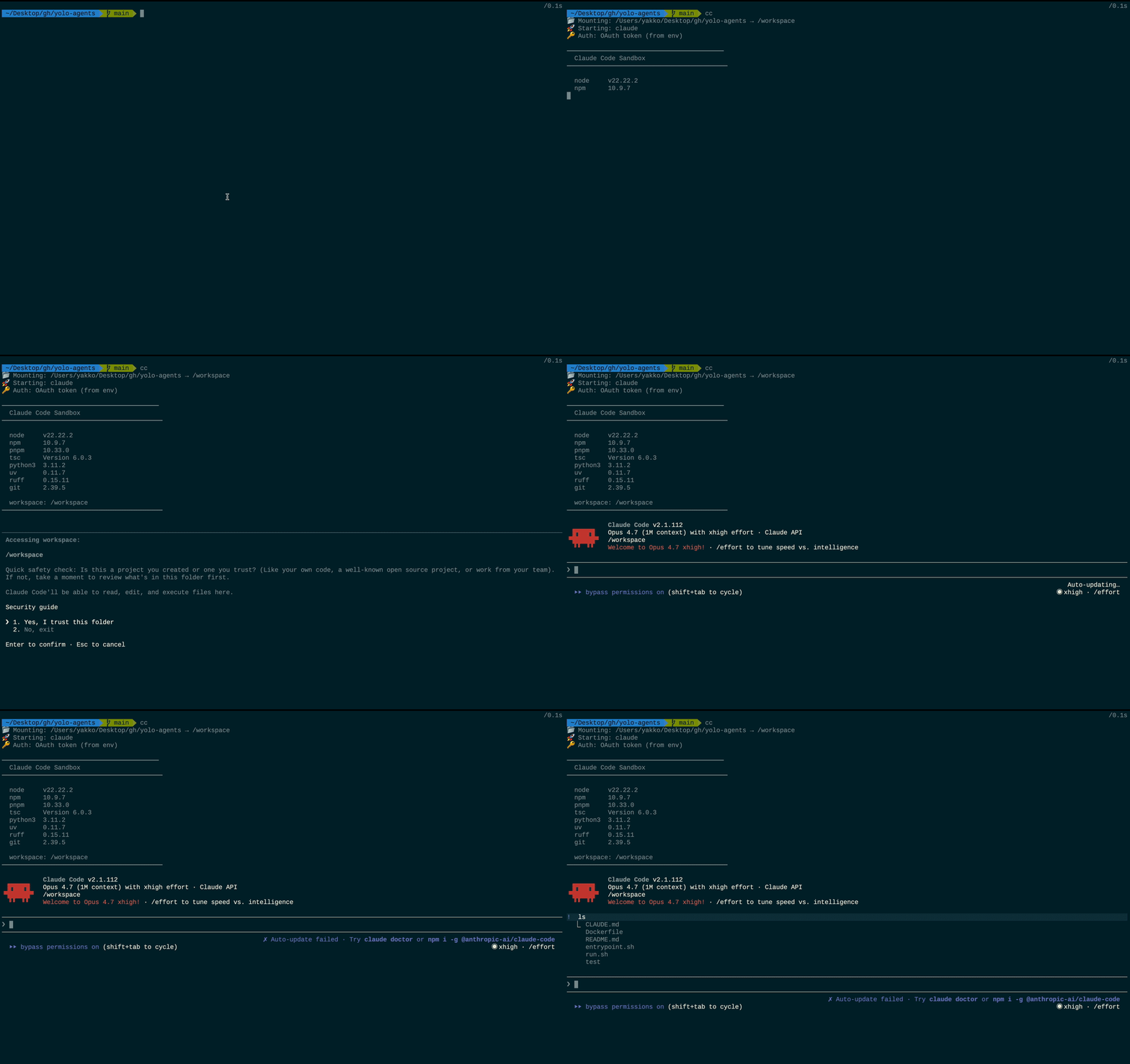
TL;DR
This is a guide on how to set things up so that you can run cc in any directory and get a Docker container with a coding agent running in YOLO mode with all your plugins, skills, and configs, so you don't need to approve what it does but you still keep your machine safe.
If you don't want to read you can just use my yolo-agents repo, but it's specific to Claude Code and you may need to tweak it to your system/needs, which is why I wrote a whole guide explaining the concepts you need to know.
Intro
I've been surprised to hear that a lot of my friends are either still approving every other thing Claude Code or Codex does, or that they run these coding agents in YOLO mode freely without any guardrails.
I think the former is much better than the latter, since you're not being a turkey, but it is inefficient. And those just running on YOLO straight up are running more risk than they think in my opinion.
Claude Code has launched "Auto mode" now, which appears helpful, but I'd be scared to completely trust it. So I thought it was a good time to write about how to have a seamless setup for running these agents in YOLO mode in a Docker container. I never wrote about this before because I thought it would be commonplace, but I realized it doesn't seem to be.
Hence, here it is, a tutorial on how to set things up so that you run one command (in my case cc) and get a running Claude Code (or whatever coding agent you use) in YOLO mode with access to your config, skills, plugins, relevant packages, and the current directory.
Running it this way means that anything dangerous or malicious is going to happen inside that Docker container, so the agent can't delete your home directory for instance. As a result, you can let it run more freely without approving the stuff it does. You're still subject to other vulnerabilities though, such as the agent exfiltrating sensitive stuff like your code or any keys it might have access to if it gets prompt injected. Just making it clear that this setup doesn't protect you from everything, but it does protect your machine.
Guide
Prerequisites
- Docker installed
- A coding agent of your choice (I'll use Claude Code for the example)
My setup is for MacOS, but it should also work on Linux. It won't work on Windows but the concepts will generally be the same.
What we're doing
Basically the things we want to accomplish are:
- Running the coding agent in a Docker container for safety
- Ensuring that the agent has access to do anything in the directory you want it to work in
- Making this as easy to run as running the agent outside a container
- Ensuring all of our skills, plugins, etc. are available in the container
- Ensuring the agent has all the tools it needs to work
Step 1: Put the agent in the container
The simplest working thing we can do is just a Dockerfile that installs e.g. Claude Code.
That would look like this:
FROM node:20-bookworm-slim

RUN apt-get update && apt-get install -y --no-install-recommends \
    git \
    curl \
    ca-certificates \
 && rm -rf /var/lib/apt/lists/*

RUN curl -fsSL https://claude.ai/install.sh | bash

ENV PATH="/root/.local/bin:${PATH}"

WORKDIR /workspace

ENTRYPOINT ["claude", "--dangerously-skip-permissions"]
Now you just need to run docker build -t claude-code . once and then you can run docker run -it -v "$PWD:/workspace" claude-code and boom, you've got Claude Code running with access to everything in the current directory (because we're mounting it as a volume).
The problem is that you need to authenticate every time, your skills and plugins are not going to come through, and this is a bit annoying to type out.
So let's keep going.
Step 2: Auth
This is the first gotcha, at least on MacOS. Claude Code on Mac stores credentials in Keychain, meaning we can't just mount ~/.claude/.credentials.json and be done with it.
Now this is one of the parts where the approach will vary from coding agent to coding agent, which is the partly why I'm building this guide: by being aware of the gotchas and moving parts, you can build/prompt this yourself for your setup more easily, otherwise you might get stuck debugging.
(I wonder if you could just point your agent to this post and have it serve as a spec.)
Anyway, so for Claude Code what we want now is to make a little entrypoint.sh script:
#!/bin/bash
set -e

# take a token from the env and add it to credentials.json
if [[ -n "${CLAUDE_CODE_OAUTH_TOKEN:-}" ]]; then
    mkdir -p "$HOME/.claude"
    cat > "$HOME/.claude/.credentials.json" <<EOF
{
  "claudeAiOauth": {
    "accessToken": "${CLAUDE_CODE_OAUTH_TOKEN}",
    "refreshToken": null,
    "expiresAt": null,
    "scopes": ["user:inference"]
  }
}
EOF
fi

# skip the first-run onboarding screen so `claude` boots straight into a session.
echo '{"hasCompletedOnboarding":true}' > "$HOME/.claude.json"

exec "$@"
This script will take a token from the environment (we'll get to how we get this token soon) and add it to credentials.json which will work in a Linux image.
Our Dockerfile also needs to change to use this entrypoint script [1]:
FROM node:20-bookworm-slim

RUN apt-get update && apt-get install -y --no-install-recommends \
    git \
    curl \
    ca-certificates \
 && rm -rf /var/lib/apt/lists/*

RUN curl -fsSL https://claude.ai/install.sh | bash

ENV PATH="/root/.local/bin:${PATH}"

# ------ changes start here --------------------
COPY entrypoint.sh /usr/local/bin/entrypoint.sh
RUN chmod 755 /usr/local/bin/entrypoint.sh

WORKDIR /workspace

ENTRYPOINT ["/usr/local/bin/entrypoint.sh"]
CMD ["claude", "--dangerously-skip-permissions"]
As for how we get the token, you just need to run claude setup-token . You could have it in a .env file in the same directory (we're using the name CLAUDE_CODE_OAUTH_TOKEN here), for example, or pass it in the docker run command every time.
Our command for running the container changes a bit too:
docker run -it --rm \
  --env-file .env \
  -v "$PWD":/workspace \
  claude-code
And now we're running Claude Code in a container without needing to go through an auth flow every time, but we're still missing our skills, plugins, etc.
Step 3: Bringing our local config over
This bit might seem simple but there are some gotchas. In an ideal world we'd just mount the config directories as volumes and everything would just work, but that's not always the case.
For Claude Code, settings and skills are straightforward. Just mount the following dirs:
- Settings:
$HOME/.claude/settings.json - Skills:
$HOME/.claude/skills
Plugins are a little more complicated though, because plugin config's refer to host-specific paths (e.g. /Users/yakko/some/path), so we need to convert these paths to make things work on the container (see entrypoint.sh below).
There might also be config files for other programs that you'll want to bring over, such as git. git on MacOS also uses Keychain, but we can do a little bit of manual work to bring over by getting the config via the git CLI and then running the git configuration commands at the entrypoint.
At this point, it's worth having a helper script run.sh:
Show full run.sh
#!/bin/bash
set -e

SCRIPT_DIR="$(cd "$(dirname "$0")" && pwd)"
MOUNT_DIR="${1:-$(pwd)}"
IMAGE_NAME="claude-code-container"
CMD="claude --dangerously-skip-permissions"

# build the image if it doesn't exist yet
if ! docker image inspect "$IMAGE_NAME" &>/dev/null; then
    docker build -t "$IMAGE_NAME" "$SCRIPT_DIR"
fi

ENV_FILE_FLAG=()
if [[ -f "$SCRIPT_DIR/.env" ]]; then
    ENV_FILE_FLAG=(--env-file "$SCRIPT_DIR/.env")
fi

SKILLS_MOUNT=()
if [[ -d "$HOME/.claude/skills" ]]; then
    SKILLS_MOUNT=(-v "$HOME/.claude/skills":/root/.claude/skills)
fi

SETTINGS_MOUNT=()
if [[ -f "$HOME/.claude/settings.json" ]]; then
    SETTINGS_MOUNT=(-v "$HOME/.claude/settings.json":/root/.claude/settings.json)
fi

PLUGINS_MOUNT=()
if [[ -d "$HOME/.claude/plugins" ]]; then
    # read-only — entrypoint copies/rewrites configs into a writable location
    PLUGINS_MOUNT=(-v "$HOME/.claude/plugins":/tmp/host-plugins:ro)
fi

# forward only name + email from the host's gitconfig
GIT_USER_NAME="$(git config --global user.name 2>/dev/null || true)"
GIT_USER_EMAIL="$(git config --global user.email 2>/dev/null || true)"

docker run -it --rm \
    -v "$MOUNT_DIR":/workspace \
    "${ENV_FILE_FLAG[@]}" \
    "${SKILLS_MOUNT[@]}" \
    "${SETTINGS_MOUNT[@]}" \
    "${PLUGINS_MOUNT[@]}" \
    -e GIT_USER_NAME="$GIT_USER_NAME" \
    -e GIT_USER_EMAIL="$GIT_USER_EMAIL" \
    "$IMAGE_NAME" \
    "${CMD[@]}"
And our entrypoint.sh script changes a bit too:
Show full entrypoint.sh
#!/bin/bash
set -e

# create a claude credentials file from a long-lived oauth token.
# we don't mount the host's /.claude/.credentials.json because on MacOS credentials are managed by Keychain
if [[ -n "${CLAUDE_CODE_OAUTH_TOKEN:-}" ]]; then
    mkdir -p "$HOME/.claude"
    cat > "$HOME/.claude/.credentials.json" <<EOF
{
  "claudeAiOauth": {
    "accessToken": "${CLAUDE_CODE_OAUTH_TOKEN}",
    "refreshToken": null,
    "expiresAt": null,
    "scopes": ["user:inference"]
  }
}
EOF
fi

# skip the first-run onboarding screen so `claude` boots straight into a session.
echo '{"hasCompletedOnboarding":true}' > "$HOME/.claude.json"

# recreate a minimal gitconfig from env vars forwarded by run.sh.
# we don't mount the host's ~/.gitconfig because on MacOS credentials are managed by Keychain
if [[ -n "${GIT_USER_NAME:-}" ]]; then
    git config --global user.name "$GIT_USER_NAME"
fi
if [[ -n "${GIT_USER_EMAIL:-}" ]]; then
    git config --global user.email "$GIT_USER_EMAIL"
fi

# ── plugin sync ───────────────────────────────────────────────────────
# run.sh mounts the host's ~/.claude/plugins read-only at /tmp/host-plugins.
# we can't use it directly because:
#   1. the JSON configs contain absolute paths (e.g. on MacOS: /Users/<name>/.claude/...)
#      that don't resolve inside the container — we sed-rewrite them to $HOME.
#   2. the data dirs (marketplaces/, cache/) are large and read-only is fine,
#      so we symlink instead of copy.
HOST_PLUGINS="/tmp/host-plugins"
DEST_PLUGINS="$HOME/.claude/plugins"

if [[ -d "$HOST_PLUGINS" ]]; then
    mkdir -p "$DEST_PLUGINS"

    for f in installed_plugins.json known_marketplaces.json blocklist.json; do
        if [[ -f "$HOST_PLUGINS/$f" ]]; then
            sed "s|/Users/[^/]*/\.claude|$HOME/.claude|g" \
                "$HOST_PLUGINS/$f" > "$DEST_PLUGINS/$f"
        fi
    done

    for d in marketplaces cache; do
        if [[ -d "$HOST_PLUGINS/$d" && ! -e "$DEST_PLUGINS/$d" ]]; then
            ln -s "$HOST_PLUGINS/$d" "$DEST_PLUGINS/$d"
        fi
    done
fi

exec "$@"
Running the container is now done via ./run.sh.
Step 4: Install whatever you need
Now that our setup is pretty much sorted, you should think about what packages/programs you'd like installed by default on your container and configure that in your Dockerfile.
I for one install things like:
- Useful system packages:
curl,wget,vim,jq, etc - A CLI for my own agent orchestrator
- Python
- uv
- ruff
- tsc
- pnpm
The yolo-agents repo has the full list. Anything that will be useful for your programs semi-frequently you should just install in the Dockerfile.
Step 5: A better developer experience
Instead of needing to always run /path/to/run.sh what I've done is set up an alias on my .zshrc file, which you could do for whatever your shell is.
My alias definition is: alias cc="bash /Users/yakko/.cc/run.sh" .
That means I can just run cc from any dir and spin up the container on the current directory. I can also run cc /some/path to use that directory.
Also, in order to run multiple containers in parallel, we need unique container names, rather than the claude-code-container name we've been using here. I have this in my run.sh:
CONTAINER_NAME="claude-$(basename "$MOUNT_DIR" | tr '[:upper:]' '[:lower:]' | tr -cs 'a-z0-9' '-' | sed 's/-*$//')-$(head -c4 /dev/urandom | xxd -p)"
Lastly, I have a CLAUDE.md that gets copied to the container and says:
## Environment
- You are running inside a **Linux Docker container** (Debian Bookworm)
- The user is on **macOS Sonoma** on the host machine
- The workspace is mounted at `/workspace` — this is the user's project directory on their Mac
- Paths shown to the user should be relative to `/workspace`, not absolute container paths
Which is helpful for the agent to understand the context it's running on.
Note that you can see all of this in my yolo-agents repo (or just copy it).
Wrapping up
So that's all. I hope it's useful for you or for you agent.
I highly recommend you do something like this because it will both be more secure while also cutting down on the approval fatigue we get from just clicking approve when agents are running commands.
Of course, manually approving things technically keeps you in the loop and is perhaps useful teaching, but in my experience it's actually just frustrating and you end up just getting more complacent. I prefer to discuss things with the agent before and after, review the code it generates, and iterate, than staying tightly in the loop throughout.
The approach I showed here does have limitations, like the fact that the agent can't access any other files in your system, and you do stumble on that sometimes midway through a session at times, but in cases like that you can also just copy the file to the directory it's working on for instance. The container also runs a different OS than your host machine, and that means certain commands it will run or suggest you won't be able to replicate.
I also don't drive 100% of my sessions like this, and there are things I need the agent to run on my machine for, but having the option to run agents in YOLO mode without much worry is really helpful.